> ## Documentation Index
> Fetch the complete documentation index at: https://ophel.app/docs/llms.txt
> Use this file to discover all available pages before exploring further.

# Global Search: find anything across Ophel in seconds

> Search outline nodes, conversations, prompts, and settings in one overlay — with syntax filters, fuzzy matching, and instant jump-to-result navigation.

export const ShortcutLegend = ({lang = "en"}) => {
  const isZh = lang === "zh";
  return <div className="ophel-shortcut-legend" role="note">
      <div className="ophel-shortcut-legend-title">
        {isZh ? "跨平台按键说明" : "Cross-platform key mapping"}
      </div>
      <div className="ophel-shortcut-legend-body">
        {isZh ? <>
            文档中的快捷键会同时显示 Windows/Linux 与 Mac 写法：
            <code>Ctrl</code> 对应 <code>Command</code>，
            <code>Alt</code> 对应 <code>Option</code>。唯一例外是提示词发送，
            <code>Ctrl+Enter</code> 在 Mac 上也使用 <code>Ctrl+Enter</code>。
          </> : <>
            Shortcuts show both Windows/Linux and Mac keys: <code>Ctrl</code> maps
            to <code>Command</code>, and <code>Alt</code> maps to
            <code>Option</code>. Prompt submit is the only exception:
            <code>Ctrl+Enter</code> remains <code>Ctrl+Enter</code> on Mac.
          </>}
      </div>
    </div>;
};

export const Shortcut = ({combo, mac, sameOnMac = false}) => {
  const keyLabels = {
    arrowup: {
      win: "Up",
      mac: "↑"
    },
    arrowdown: {
      win: "Down",
      mac: "↓"
    },
    arrowleft: {
      win: "Left",
      mac: "←"
    },
    arrowright: {
      win: "Right",
      mac: "→"
    },
    up: {
      win: "Up",
      mac: "↑"
    },
    down: {
      win: "Down",
      mac: "↓"
    },
    left: {
      win: "Left",
      mac: "←"
    },
    right: {
      win: "Right",
      mac: "→"
    },
    esc: {
      win: "Esc",
      mac: "Esc"
    },
    escape: {
      win: "Esc",
      mac: "Esc"
    },
    enter: {
      win: "Enter",
      mac: "Enter"
    },
    shift: {
      win: "Shift",
      mac: "⇧"
    },
    backslash: {
      win: "\\",
      mac: "\\"
    }
  };
  const modifierLabels = {
    ctrl: {
      win: "Ctrl",
      mac: "⌘"
    },
    control: {
      win: "Ctrl",
      mac: "⌘"
    },
    cmd: {
      win: "Ctrl",
      mac: "⌘"
    },
    command: {
      win: "Ctrl",
      mac: "⌘"
    },
    alt: {
      win: "Alt",
      mac: "⌥"
    },
    option: {
      win: "Alt",
      mac: "⌥"
    },
    shift: {
      win: "Shift",
      mac: "⇧"
    }
  };
  const normalizeToken = token => String(token || "").trim();
  const formatKey = (token, platform) => {
    const normalized = normalizeToken(token);
    const key = normalized.toLowerCase();
    const mapped = keyLabels[key];
    if (mapped) return mapped[platform];
    if (normalized.length === 1) return normalized.toUpperCase();
    return normalized;
  };
  const formatCombo = (value, platform) => String(value || "").split("+").map(normalizeToken).filter(Boolean).map(token => {
    const mapped = modifierLabels[token.toLowerCase()];
    return mapped ? mapped[platform] : formatKey(token, platform);
  }).join(platform === "mac" ? "" : "+");
  const windowsLabel = formatCombo(combo, "win");
  const macLabel = sameOnMac ? windowsLabel : mac || formatCombo(combo, "mac");
  const title = windowsLabel === macLabel ? windowsLabel : `Windows/Linux: ${windowsLabel}; Mac: ${macLabel}`;
  return <span className="ophel-shortcut" title={title}>
      <code>{windowsLabel}</code>
      {windowsLabel !== macLabel && <>
          <span className="ophel-shortcut-separator"> / </span>
          <code>{macLabel}</code>
        </>}
    </span>;
};

export const Icon = ({src, alt}) => <img src={typeof window !== "undefined" && typeof src === "string" && src.startsWith("/images/icons/") && (window.location.pathname === "/docs" || window.location.pathname.startsWith("/docs/")) ? `/docs${src}` : src} alt={alt} width="18" height="18" style={{
  display: "inline-block",
  verticalAlign: "-0.2em",
  margin: "0 0.15em"
}} />;

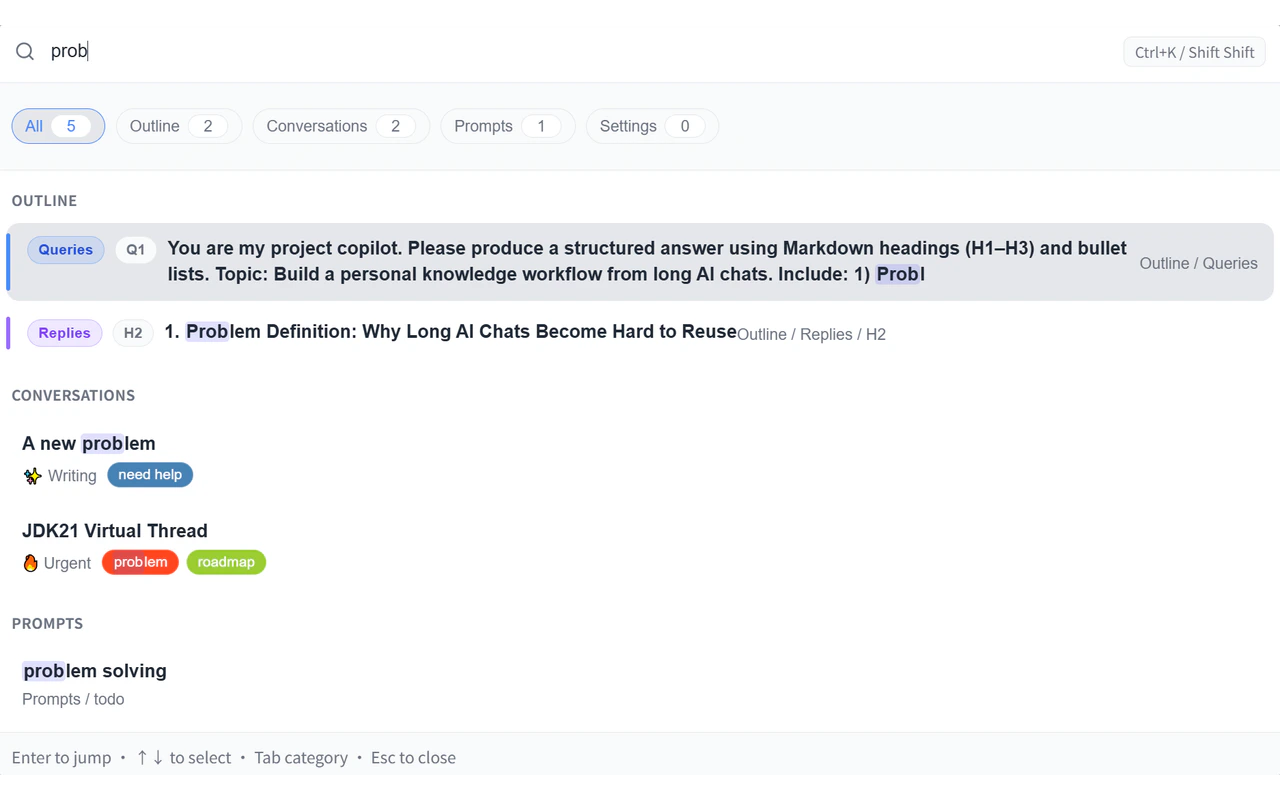
Global Search brings the content available in the current Ophel context into a single search field. Instead of switching between tabs to find a heading, conversation on the current AI platform, or saved prompt, you open one overlay and search from one place. Results are grouped by type, and selecting one jumps you directly to that item.

<img src="https://mintcdn.com/urzeye/9I8m8P8gSndxcYtq/images/enhancements/global-search-en.png?fit=max&auto=format&n=9I8m8P8gSndxcYtq&q=85&s=d6a4b30b155fa2d225f034120be67834" alt="Global Search overlay — search box with categorized results" width="1280" height="800" data-path="images/enhancements/global-search-en.png" />

## How to open Global Search

| Method                                                                                             | Description                                                                                                                       |
| -------------------------------------------------------------------------------------------------- | --------------------------------------------------------------------------------------------------------------------------------- |
| <Icon src="/docs/images/icons/keyboard.svg" alt="Keyboard shortcut icon" /> <Shortcut combo="ctrl+k" /> | Default keyboard shortcut                                                                                                         |
| <Icon src="/docs/images/icons/search.svg" alt="Search icon" /> Floating button                          | Click the search icon in the floating quick-buttons group                                                                         |
| Double Shift                                                                                       | Press Shift twice in quick succession — optional; enable in **Settings → Global Search**. Works even when the page is not focused |

<Note>
  Double Shift must be enabled in settings before it works. Unlike other
  shortcuts, it does not require the page to be focused, making it useful when
  you are interacting with another part of the browser.
</Note>

## Search scope

Global Search covers five result types:

| Type                                                                                | What is included                                                                                 |
| ----------------------------------------------------------------------------------- | ------------------------------------------------------------------------------------------------ |
| <Icon src="/docs/images/icons/outline.svg" alt="Outline icon" /> Outline nodes           | All headings and your questions in the current conversation                                      |
| <Icon src="/docs/images/icons/conversation.svg" alt="Conversation icon" /> Conversations | Saved conversations for the current AI platform or account — searchable by title, tag, or folder |
| <Icon src="/docs/images/icons/prompt.svg" alt="Prompt icon" /> Prompts                   | Titles and content from your prompt library                                                      |
| <Icon src="/docs/images/icons/settings.svg" alt="Settings icon" /> Settings              | Feature names and keywords from the settings page                                                |
| <Icon src="/docs/images/icons/features.svg" alt="Feature tips icon" /> Feature Tips      | Ophel feature discovery tips — type `tip:` to browse them                                        |

Results are grouped by type. Use the arrow keys to navigate up and down, press **Enter** to jump to the selected result, and press **Esc** to close the overlay.

## Syntax filters

Add a `key:value` prefix to narrow results. Multiple filters can be combined with each other and with plain keywords.

| Filter    | Applies to             | Values                                               | Example              |
| --------- | ---------------------- | ---------------------------------------------------- | -------------------- |
| `type:`   | All                    | `outline` · `conversations` · `prompts` · `settings` | `type:conversations` |
| `folder:` | Conversations          | Any folder name (partial match)                      | `folder:work`        |
| `tag:`    | Conversations, Prompts | Any tag name (partial match)                         | `tag:research`       |
| `is:`     | Conversations          | `pinned` · `unpinned`                                | `is:pinned`          |
| `level:`  | Outline nodes          | `0` – `6` (heading depth)                            | `level:2`            |
| `date:`   | Conversations, Prompts | `Nd` — up to 999 days (e.g. `7d`, `30d`)             | `date:30d`           |

<Note>
  Type `tip:` in the search box to switch into Feature Tips mode. This is not a
  syntax filter — it bypasses normal search and lists Ophel feature discovery
  tips instead.
</Note>

You can combine filters with each other and with plain keywords. For example:

```text theme={}
folder:work tag:research model
```

This finds conversations in the "work" folder that also have the "research" tag and whose title contains "model".

## Fuzzy search

When fuzzy search is enabled, Ophel allows partial matches — searching `rans` finds `translate`. When it is off, only exact substring matches are returned.

Toggle fuzzy search in **Settings → Global Search**.

<Tip>
  Disable fuzzy search when you want precise results — for example, when
  searching for a specific variable name or a prompt title you know exactly.
</Tip>

## Selecting a prompt result

When you press Enter on a **prompt** result, Ophel adapts to the context:

* **Smart insert** (default) — if an AI input box is available on the current page, the prompt is inserted directly into it
* **Locate only** — Ophel switches to the Prompts tab and highlights the entry, without inserting

Change this behavior in **Settings → Global Search → Prompt Enter behavior**.

## Search tips

<AccordionGroup>
  <Accordion title="Find a conversation by folder">
    Type `folder:` followed by part of the folder name. You do not need to type the full name — partial matches work when fuzzy search is on.

    ```text theme={}
    folder:client
    ```
  </Accordion>

  <Accordion title="Find all conversations with a specific tag">
    Type `tag:` followed by the tag name.

    ```text theme={}
    tag:todo
    ```
  </Accordion>

  <Accordion title="Filter by pin state">
    Use `is:pinned` to see only pinned conversations, or `is:unpinned` to exclude them.

    ```text theme={}
    is:pinned project
    ```
  </Accordion>

  <Accordion title="Filter by recency">
    Use `date:Nd` to limit results to conversations or prompts updated within the last N days. For example, `date:7d` returns items from the past week.

    ```text theme={}
    date:30d refactor
    ```
  </Accordion>

  <Accordion title="Filter by heading level">
    Use `level:n` (0–6) to find outline nodes at a specific heading depth. Level 1 is an `<h1>`, level 2 is `<h2>`, and so on. Level 0 matches your own questions in the conversation.

    ```text theme={}
    level:2 overview
    ```
  </Accordion>

  <Accordion title="Jump to a settings page">
    Type a feature or setting name directly. For example, typing `theme` surfaces the Appearance settings entry; typing `shortcut` brings up the Shortcuts page.
  </Accordion>

  <Accordion title="Find an outline heading in the current conversation">
    Open Global Search while reading a conversation and type part of a heading. Selecting the result scrolls the conversation to that heading and highlights the matching outline entry.
  </Accordion>
</AccordionGroup>

## Settings

Go to **Settings → Global Search** to configure:

| Setting               | Description                                                                       |
| --------------------- | --------------------------------------------------------------------------------- |
| Double Shift          | Enable double-pressing Shift to open search                                       |
| Fuzzy search          | Allow partial matches when on; exact substring matches only when off              |
| Prompt Enter behavior | What happens when you press Enter on a prompt result: smart insert or locate only |
