> ## Documentation Index
> Fetch the complete documentation index at: https://ophel.app/docs/llms.txt
> Use this file to discover all available pages before exploring further.

# Smart Outline: live table of contents for AI chats

> Ophel builds a live, clickable table of contents from your questions and AI headings — with bookmarks, filters, and keyboard shortcuts for long conversations.

export const ShortcutLegend = ({lang = "en"}) => {
  const isZh = lang === "zh";
  return <div className="ophel-shortcut-legend" role="note">
      <div className="ophel-shortcut-legend-title">
        {isZh ? "跨平台按键说明" : "Cross-platform key mapping"}
      </div>
      <div className="ophel-shortcut-legend-body">
        {isZh ? <>
            文档中的快捷键会同时显示 Windows/Linux 与 Mac 写法：
            <code>Ctrl</code> 对应 <code>Command</code>，
            <code>Alt</code> 对应 <code>Option</code>。唯一例外是提示词发送，
            <code>Ctrl+Enter</code> 在 Mac 上也使用 <code>Ctrl+Enter</code>。
          </> : <>
            Shortcuts show both Windows/Linux and Mac keys: <code>Ctrl</code> maps
            to <code>Command</code>, and <code>Alt</code> maps to
            <code>Option</code>. Prompt submit is the only exception:
            <code>Ctrl+Enter</code> remains <code>Ctrl+Enter</code> on Mac.
          </>}
      </div>
    </div>;
};

export const Shortcut = ({combo, mac, sameOnMac = false}) => {
  const keyLabels = {
    arrowup: {
      win: "Up",
      mac: "↑"
    },
    arrowdown: {
      win: "Down",
      mac: "↓"
    },
    arrowleft: {
      win: "Left",
      mac: "←"
    },
    arrowright: {
      win: "Right",
      mac: "→"
    },
    up: {
      win: "Up",
      mac: "↑"
    },
    down: {
      win: "Down",
      mac: "↓"
    },
    left: {
      win: "Left",
      mac: "←"
    },
    right: {
      win: "Right",
      mac: "→"
    },
    esc: {
      win: "Esc",
      mac: "Esc"
    },
    escape: {
      win: "Esc",
      mac: "Esc"
    },
    enter: {
      win: "Enter",
      mac: "Enter"
    },
    shift: {
      win: "Shift",
      mac: "⇧"
    },
    backslash: {
      win: "\\",
      mac: "\\"
    }
  };
  const modifierLabels = {
    ctrl: {
      win: "Ctrl",
      mac: "⌘"
    },
    control: {
      win: "Ctrl",
      mac: "⌘"
    },
    cmd: {
      win: "Ctrl",
      mac: "⌘"
    },
    command: {
      win: "Ctrl",
      mac: "⌘"
    },
    alt: {
      win: "Alt",
      mac: "⌥"
    },
    option: {
      win: "Alt",
      mac: "⌥"
    },
    shift: {
      win: "Shift",
      mac: "⇧"
    }
  };
  const normalizeToken = token => String(token || "").trim();
  const formatKey = (token, platform) => {
    const normalized = normalizeToken(token);
    const key = normalized.toLowerCase();
    const mapped = keyLabels[key];
    if (mapped) return mapped[platform];
    if (normalized.length === 1) return normalized.toUpperCase();
    return normalized;
  };
  const formatCombo = (value, platform) => String(value || "").split("+").map(normalizeToken).filter(Boolean).map(token => {
    const mapped = modifierLabels[token.toLowerCase()];
    return mapped ? mapped[platform] : formatKey(token, platform);
  }).join(platform === "mac" ? "" : "+");
  const windowsLabel = formatCombo(combo, "win");
  const macLabel = sameOnMac ? windowsLabel : mac || formatCombo(combo, "mac");
  const title = windowsLabel === macLabel ? windowsLabel : `Windows/Linux: ${windowsLabel}; Mac: ${macLabel}`;
  return <span className="ophel-shortcut" title={title}>
      <code>{windowsLabel}</code>
      {windowsLabel !== macLabel && <>
          <span className="ophel-shortcut-separator"> / </span>
          <code>{macLabel}</code>
        </>}
    </span>;
};

export const Icon = ({src, alt}) => <img src={typeof window !== "undefined" && typeof src === "string" && src.startsWith("/images/icons/") && (window.location.pathname === "/docs" || window.location.pathname.startsWith("/docs/")) ? `/docs${src}` : src} alt={alt} width="18" height="18" style={{
  display: "inline-block",
  verticalAlign: "-0.2em",
  margin: "0 0.15em"
}} />;

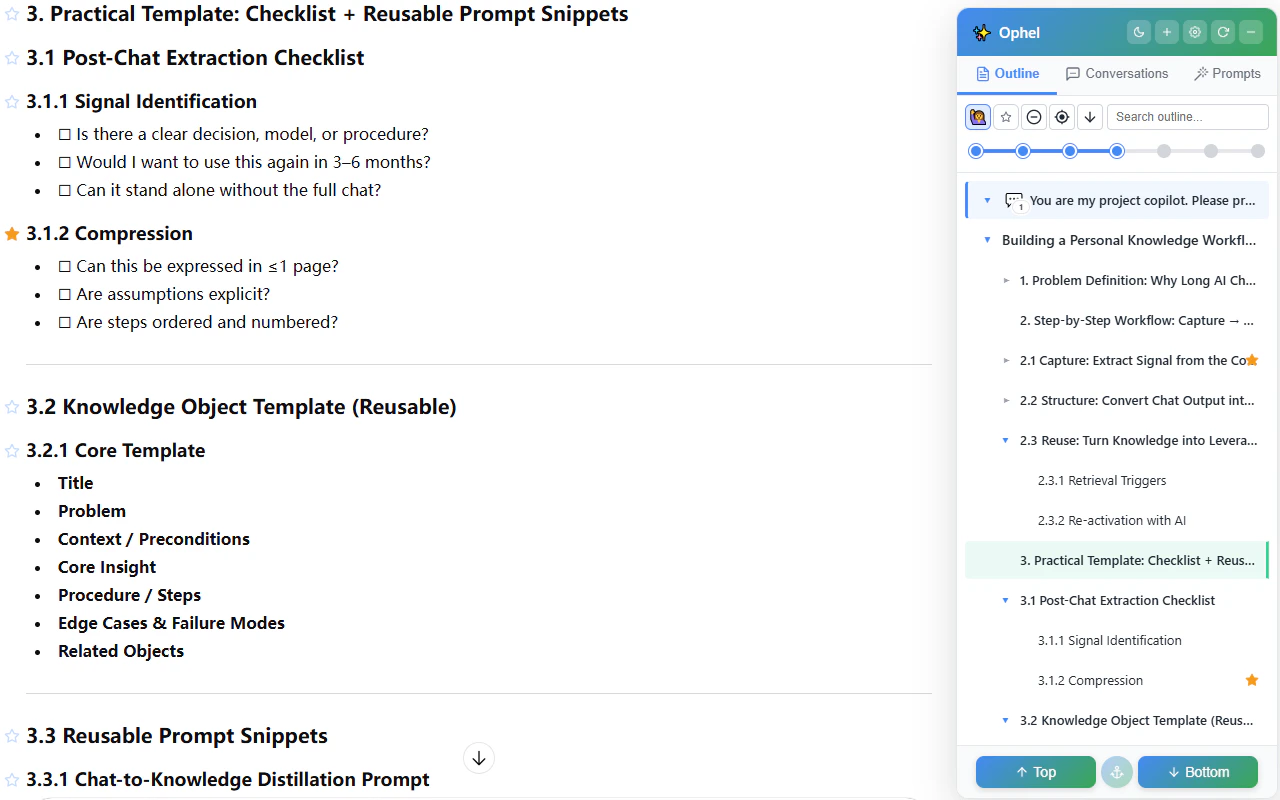
The Smart Outline reads your conversation after every AI reply and builds a navigable tree in the side panel. Each of your messages becomes a top-level entry, and any Markdown headings inside the AI's response become nested entries beneath it. The longer the conversation, the more value the outline adds.

<img src="https://mintcdn.com/urzeye/9I8m8P8gSndxcYtq/images/features/outline-en.png?fit=max&auto=format&n=9I8m8P8gSndxcYtq&q=85&s=abe7cdad0df665392c5cc949b9a43da3" alt="Smart Outline — live conversation table of contents" width="1280" height="800" data-path="images/features/outline-en.png" />

## How the outline is built

Every time the AI finishes a reply, Ophel scans the page and produces a tree from two sources:

* **Your questions** — each user message becomes a first-level entry
* **AI response headings** — Markdown headings (`#`, `##`, `###`, etc.) inside AI replies appear as nested children under the question that triggered them

```text theme={}
You: Explain React core concepts
  ├── # React Introduction
  │   ├── ## What is React
  │   └── ## Why use React
  ├── # Core Concepts
  │   ├── ## Components
  │   ├── ## Props and State
  │   └── ## Lifecycle
  └── # Summary
```

Click any entry in the outline to jump directly to that part of the conversation.

## Scroll following and locate mode

As you scroll the conversation, the outline highlights the entry that matches your current reading position in real time — a position indicator that keeps you oriented inside long threads.

If you scroll the outline panel itself and lose track of where you are, click the <Icon src="/docs/images/icons/locate.svg" alt="Locate current position icon" /> **Locate current position** button or press <Shortcut combo="alt+l" /> to snap the outline panel back to highlight your current position.

## Filter and toolbar controls

The outline toolbar gives you quick controls for filtering, expansion, copying, locating, and scrolling.

| Button                                                                                                                                                                                    | What it shows                                                                                |
| ----------------------------------------------------------------------------------------------------------------------------------------------------------------------------------------- | -------------------------------------------------------------------------------------------- |
| <Icon src="/docs/images/icons/user-query.svg" alt="User questions icon" /> **Questions toggle**                                                                                                | Shows or hides your messages as outline entries — useful for reviewing the conversation flow |
| <Icon src="/docs/images/icons/star.svg" alt="Bookmarks icon" /> **Bookmarks only**                                                                                                             | Shows only entries you have starred                                                          |
| <Icon src="/docs/images/icons/expand-all.svg" alt="Expand all icon" /> / <Icon src="/docs/images/icons/collapse-all.svg" alt="Collapse all icon" /> **Expand / collapse all**                       | Expands or collapses the visible outline tree                                                |
| <Icon src="/docs/images/icons/copy-outline.svg" alt="Copy outline icon" /> **Copy outline**                                                                                                    | Copies a Markdown outline for the current source                                             |
| <Icon src="/docs/images/icons/locate.svg" alt="Locate current position icon" /> **Locate current position**                                                                                    | Scrolls the outline panel back to the item matching your current reading position            |
| <Icon src="/docs/images/icons/scroll-top.svg" alt="Scroll to outline top icon" /> / <Icon src="/docs/images/icons/scroll-bottom.svg" alt="Scroll to outline bottom icon" /> **Scroll top / bottom** | Jumps within the outline list without moving the conversation page                           |

You can also switch filters with keyboard shortcuts:

| Shortcut                         | Action                                         |
| -------------------------------- | ---------------------------------------------- |
| <Shortcut combo="alt+q" />       | Toggle user questions on/off                   |
| <Shortcut combo="alt+shift+q" /> | Show only user questions (collapse to level 0) |
| <Shortcut combo="alt+c" />       | Toggle bookmarks filter                        |

## Bookmarks

Hover over any outline entry to reveal the <Icon src="/docs/images/icons/star.svg" alt="Star bookmark icon" /> star icon. Click it to bookmark that heading. Bookmarks persist across page reloads.

<Note>
  If a bookmarked heading disappears from the conversation — for example, when
  the AI regenerates a response — it becomes a **ghost bookmark**. Open the
  <Icon src="/docs/images/icons/tools.svg" alt="Toolbox icon" /> **Toolbox** and
  select <Icon src="/docs/images/icons/cleanup.svg" alt="Clear invalid bookmarks icon" />
  **Clear Invalid Bookmarks** to remove stale ghost bookmarks.
</Note>

## Expand by level

You can expand the tree to a specific heading depth without manually clicking every node.

<Steps>
  <Step title="Right-click any outline node">
    A context menu appears with expand-to-level options.
  </Step>

  <Step title="Choose a depth, or use a keyboard shortcut">
    Press <Shortcut combo="alt+shift+1" /> through <Shortcut combo="alt+shift+6" /> to expand to heading levels 1–6 directly.
  </Step>
</Steps>

Press <Shortcut combo="alt+e" /> to toggle all nodes expanded or collapsed at once.

## Word count on hover

Hover over any outline entry to see a small tooltip showing the approximate character count of that section. This gives you a quick sense of how long an AI response or section is before you navigate to it.

## Copy node text

Outline entries show a <Icon src="/docs/images/icons/copy.svg" alt="Copy icon" /> copy icon on hover. Click it to copy that node's text to your clipboard — handy for re-asking a question in a new conversation or saving a heading to notes.

## Copy full outline

Click the <Icon src="/docs/images/icons/copy-outline.svg" alt="Copy outline icon" /> **Copy outline** button in the Outline toolbar to copy a structured Markdown outline for the current source. For conversations, the copy follows the current user-question toggle and heading level. For document outlines, it follows the visible outline tree. For virtualized long conversations, Ophel loads the full history first, then restores the page position when it finishes.

## Document outline sources

On platforms that expose a separate document panel — such as Claude's right-side document panel or Gemini's Deep Research report — the outline header shows a <Icon src="/docs/images/icons/outline-document.svg" alt="Document outline icon" /> **Chat / Document** source switch. When you select **Document**, the outline tree reflects the document's heading structure instead of the conversation's, letting you navigate the report independently from the chat thread.

## Shortcuts

<ShortcutLegend />

| Shortcut                                                            | Action                                         |
| ------------------------------------------------------------------- | ---------------------------------------------- |
| <Shortcut combo="alt+r" />                                          | Refresh outline                                |
| <Shortcut combo="alt+e" />                                          | Expand / collapse all                          |
| <Shortcut combo="alt+q" />                                          | Toggle user questions on/off                   |
| <Shortcut combo="alt+shift+q" />                                    | Show only user questions (collapse to level 0) |
| <Shortcut combo="alt+c" />                                          | Toggle bookmarks filter                        |
| <Shortcut combo="alt+l" />                                          | Locate current position in outline             |
| <Shortcut combo="alt+f" />                                          | Search within outline                          |
| <Shortcut combo="alt+up" />                                         | Jump to previous heading                       |
| <Shortcut combo="alt+down" />                                       | Jump to next heading                           |
| <Shortcut combo="alt+shift+1" /> - <Shortcut combo="alt+shift+6" /> | Expand outline to heading level 1–6            |

All shortcuts are customizable in **Settings → Shortcuts**.

## Settings

Go to **Settings → Features → Outline** to configure the outline's behavior.

| Setting              | Description                                                                       |
| -------------------- | --------------------------------------------------------------------------------- |
| Auto update          | Whether the outline refreshes automatically after each AI reply                   |
| Update interval      | How often Ophel checks for changes (seconds)                                      |
| Follow mode          | Whether the outline tracks your scroll position: `current`, `latest`, or `manual` |
| Inline bookmark icon | When to show the bookmark star inside the conversation text itself                |
| Panel bookmark icon  | When to show the bookmark star in the outline panel entries                       |
| Show word count      | Show character count tooltip on hover                                             |
| Prevent auto-scroll  | Stop the outline panel from scrolling itself when you navigate                    |
