> ## Documentation Index
> Fetch the complete documentation index at: https://ophel.app/docs/llms.txt
> Use this file to discover all available pages before exploring further.

# Troubleshoot common Ophel Atlas problems step by step

> Step-by-step fixes for the most common Ophel Atlas problems: panel not showing, empty outline, stalled prompt queue, Firefox restarts, and more.

export const ShortcutLegend = ({lang = "en"}) => {
  const isZh = lang === "zh";
  return <div className="ophel-shortcut-legend" role="note">
      <div className="ophel-shortcut-legend-title">
        {isZh ? "跨平台按键说明" : "Cross-platform key mapping"}
      </div>
      <div className="ophel-shortcut-legend-body">
        {isZh ? <>
            文档中的快捷键会同时显示 Windows/Linux 与 Mac 写法：
            <code>Ctrl</code> 对应 <code>Command</code>，
            <code>Alt</code> 对应 <code>Option</code>。唯一例外是提示词发送，
            <code>Ctrl+Enter</code> 在 Mac 上也使用 <code>Ctrl+Enter</code>。
          </> : <>
            Shortcuts show both Windows/Linux and Mac keys: <code>Ctrl</code> maps
            to <code>Command</code>, and <code>Alt</code> maps to
            <code>Option</code>. Prompt submit is the only exception:
            <code>Ctrl+Enter</code> remains <code>Ctrl+Enter</code> on Mac.
          </>}
      </div>
    </div>;
};

export const Shortcut = ({combo, mac, sameOnMac = false}) => {
  const keyLabels = {
    arrowup: {
      win: "Up",
      mac: "↑"
    },
    arrowdown: {
      win: "Down",
      mac: "↓"
    },
    arrowleft: {
      win: "Left",
      mac: "←"
    },
    arrowright: {
      win: "Right",
      mac: "→"
    },
    up: {
      win: "Up",
      mac: "↑"
    },
    down: {
      win: "Down",
      mac: "↓"
    },
    left: {
      win: "Left",
      mac: "←"
    },
    right: {
      win: "Right",
      mac: "→"
    },
    esc: {
      win: "Esc",
      mac: "Esc"
    },
    escape: {
      win: "Esc",
      mac: "Esc"
    },
    enter: {
      win: "Enter",
      mac: "Enter"
    },
    shift: {
      win: "Shift",
      mac: "⇧"
    },
    backslash: {
      win: "\\",
      mac: "\\"
    }
  };
  const modifierLabels = {
    ctrl: {
      win: "Ctrl",
      mac: "⌘"
    },
    control: {
      win: "Ctrl",
      mac: "⌘"
    },
    cmd: {
      win: "Ctrl",
      mac: "⌘"
    },
    command: {
      win: "Ctrl",
      mac: "⌘"
    },
    alt: {
      win: "Alt",
      mac: "⌥"
    },
    option: {
      win: "Alt",
      mac: "⌥"
    },
    shift: {
      win: "Shift",
      mac: "⇧"
    }
  };
  const normalizeToken = token => String(token || "").trim();
  const formatKey = (token, platform) => {
    const normalized = normalizeToken(token);
    const key = normalized.toLowerCase();
    const mapped = keyLabels[key];
    if (mapped) return mapped[platform];
    if (normalized.length === 1) return normalized.toUpperCase();
    return normalized;
  };
  const formatCombo = (value, platform) => String(value || "").split("+").map(normalizeToken).filter(Boolean).map(token => {
    const mapped = modifierLabels[token.toLowerCase()];
    return mapped ? mapped[platform] : formatKey(token, platform);
  }).join(platform === "mac" ? "" : "+");
  const windowsLabel = formatCombo(combo, "win");
  const macLabel = sameOnMac ? windowsLabel : mac || formatCombo(combo, "mac");
  const title = windowsLabel === macLabel ? windowsLabel : `Windows/Linux: ${windowsLabel}; Mac: ${macLabel}`;
  return <span className="ophel-shortcut" title={title}>
      <code>{windowsLabel}</code>
      {windowsLabel !== macLabel && <>
          <span className="ophel-shortcut-separator"> / </span>
          <code>{macLabel}</code>
        </>}
    </span>;
};

export const Icon = ({src, alt}) => <img src={typeof window !== "undefined" && typeof src === "string" && src.startsWith("/images/icons/") && (window.location.pathname === "/docs" || window.location.pathname.startsWith("/docs/")) ? `/docs${src}` : src} alt={alt} width="18" height="18" style={{
  display: "inline-block",
  verticalAlign: "-0.2em",
  margin: "0 0.15em"
}} />;

If something isn't working as expected, this page walks you through the most common issues and how to fix them. For problems not covered here, open a report on [GitHub Issues](https://github.com/urzeye/ophel/issues) with your browser version, extension version, and any errors from the browser console.

## Panel not appearing

<img src="https://mintcdn.com/urzeye/AGLEIfLkr4uHH1zd/images/panel/panel-tabs.png?fit=max&auto=format&n=AGLEIfLkr4uHH1zd&q=85&s=141737be3544a5375f83ad741b340b24" alt="Ophel side panel — three tabs overview" width="315" height="338" data-path="images/panel/panel-tabs.png" />

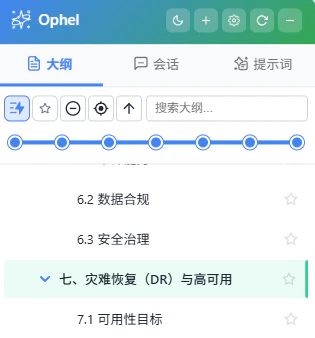
The Ophel side panel should appear automatically when you open a supported AI platform. If it doesn't show up:

<Steps>
  <Step title="Confirm the extension is enabled">
    Click the puzzle-piece icon in your browser toolbar and verify that Ophel
    Atlas is toggled on. If it's disabled, enable it and reload the page.
  </Step>

  <Step title="Hard-reload the page">
    Press <Shortcut combo="ctrl+shift+r" /> to force a full page reload. A
    standard reload sometimes does not reinitialize the Ophel panel on the page.
  </Step>

  <Step title="Check the supported site list">
    Ophel only activates on its supported platforms. Confirm you're on one of
    the 15 supported sites (Gemini, ChatGPT, Claude, DeepSeek, Grok, and
    others). If the URL doesn't match, Ophel will not inject the panel.
  </Step>

  <Step title="Use the keyboard shortcut as a fallback">
    If the panel was previously closed, press <Icon src="/docs/images/icons/keyboard.svg" alt="Keyboard shortcut icon" /> <Shortcut combo="alt+p" /> to
    reopen it. This toggles the panel regardless of the state of any floating
    buttons.
  </Step>
</Steps>

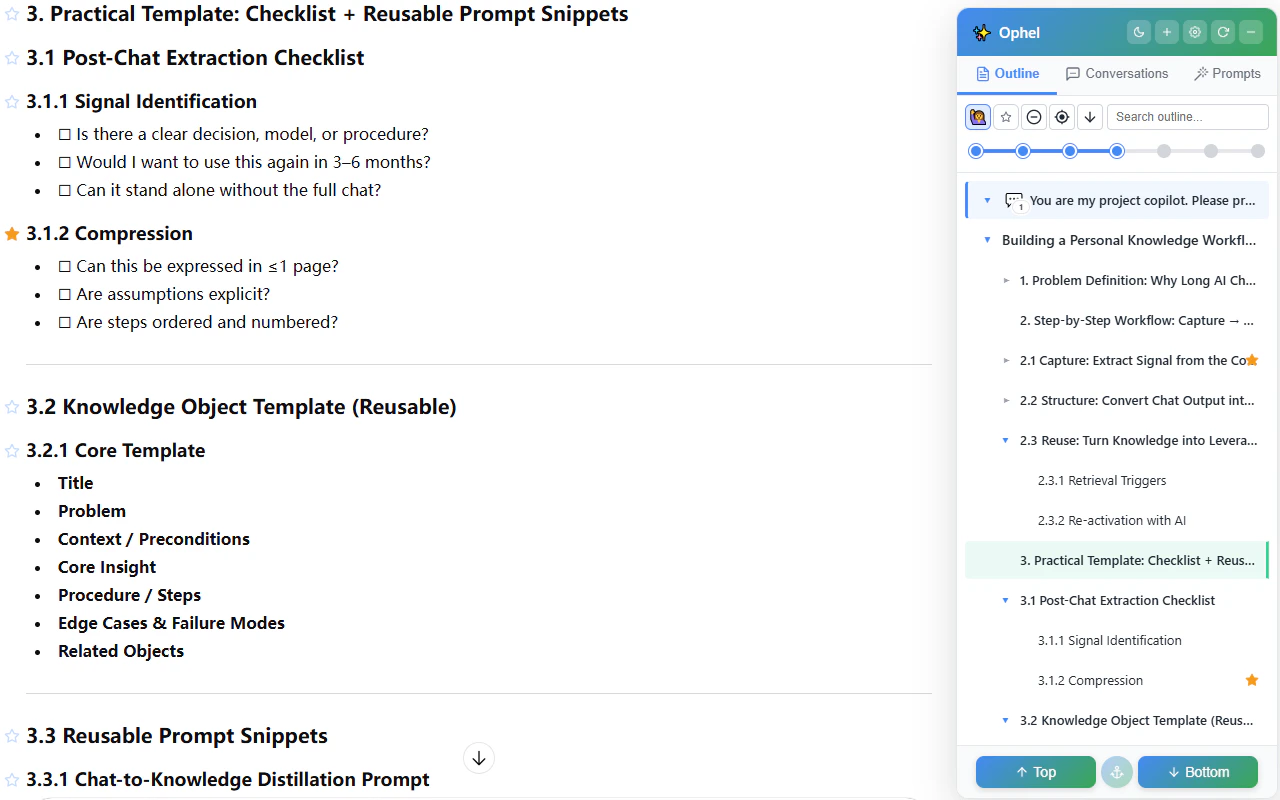
## Outline is empty or not updating

<img src="https://mintcdn.com/urzeye/9I8m8P8gSndxcYtq/images/features/outline-en.png?fit=max&auto=format&n=9I8m8P8gSndxcYtq&q=85&s=abe7cdad0df665392c5cc949b9a43da3" alt="Outline tab — real-time conversation tree" width="1280" height="800" data-path="images/features/outline-en.png" />

<Steps>
  <Step title="Refresh the outline manually">
    Press <Icon src="/docs/images/icons/refresh.svg" alt="Refresh outline icon" /> <Shortcut combo="alt+r" /> to force the outline to re-scan the
    conversation. Some AI platforms update the DOM asynchronously, so the
    outline may not populate on its own immediately after the page loads.
  </Step>

  <Step title="Wait for the AI to finish responding">
    The outline rebuilds after each AI reply completes. If the AI is still
    generating, the outline won't update until it finishes.
  </Step>

  <Step title="Check the auto-update setting">
    Go to **Settings → Features → Outline** and confirm that **Auto update** is
    enabled. If it's off, the outline only refreshes when you trigger it
    manually with <Shortcut combo="alt+r" />.
  </Step>
</Steps>

## Outline not tracking scroll position

If the outline doesn't highlight the section you're currently reading as you scroll:

<Steps>
  <Step title="Enable scroll sync in Settings">
    Go to **Settings → Features → Outline** and set **Follow mode** to
    `current`. When this is set to `manual`, the outline does not automatically
    track your scroll position.
  </Step>
</Steps>

## Floating buttons disappeared

<img src="https://mintcdn.com/urzeye/AGLEIfLkr4uHH1zd/images/panel/floating-buttons.png?fit=max&auto=format&n=AGLEIfLkr4uHH1zd&q=85&s=3407c52ae11d8640fe975e95fb507cf6" alt="Floating action buttons — expanded and collapsed pill state" width="64" height="433" data-path="images/panel/floating-buttons.png" />


The floating action buttons auto-collapse into a compact pill shape after 5 seconds of inactivity. They are not gone — they're just minimized.
<Steps>
  <Step title="Move your mouse near the buttons">
    Move your cursor within approximately 150 px of the collapsed pill. The
    buttons will expand automatically.
  </Step>

  <Step title="Use the keyboard shortcut if the pill is not visible">
    If the buttons are completely missing from the screen, press <Icon src="/docs/images/icons/keyboard.svg" alt="Keyboard shortcut icon" /> <Shortcut combo="alt+p" /> to open the panel. The floating buttons reappear alongside it.
  </Step>
</Steps>

## Panel covering page content

<img src="https://mintcdn.com/urzeye/AGLEIfLkr4uHH1zd/images/panel/ghost-mode.webp?fit=max&auto=format&n=AGLEIfLkr4uHH1zd&q=85&s=a81f47df60ac520403b297f7d57c8800" alt="Ghost mode — semi-transparent panel with click-through enabled" width="408" height="918" data-path="images/panel/ghost-mode.webp" />

If the Ophel panel is positioned over something you need to click on the underlying page:
<Steps>
  <Step title="Use ghost mode for temporary click-through">
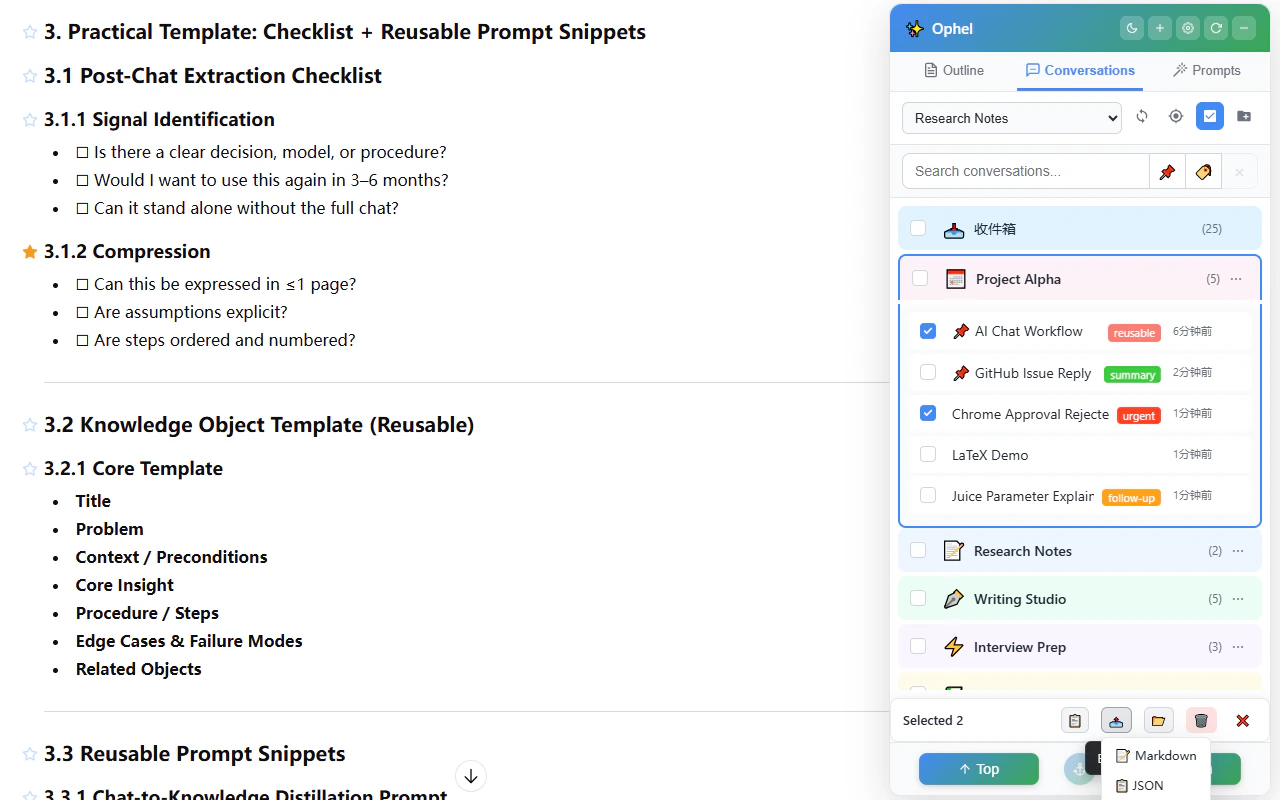
    Hold <Shortcut combo="ctrl" /> alone for about 0.2
    seconds. The panel becomes transparent and lets clicks pass through to the
    page behind it. Release the key to restore the panel to normal.
  </Step>

  <Step title="Drag the panel to a screen edge">
    Drag the panel toward any screen edge. When it snaps into place, it hides
    against the edge and only slides out when you hover over it — freeing up the
    rest of the screen. To undock it, drag it away from the edge.
  </Step>
</Steps>

## Conversations tab is empty

<img src="https://mintcdn.com/urzeye/9I8m8P8gSndxcYtq/images/features/conversation-en.png?fit=max&auto=format&n=9I8m8P8gSndxcYtq&q=85&s=cb447fe91815933df0f4d066de8ae68f" alt="Conversations tab — folder and tag list" width="1280" height="800" data-path="images/features/conversation-en.png" />

<Steps>
  <Step title="Make sure the AI platform's sidebar has loaded">
    The Conversations tab reads directly from the AI platform's own sidebar. If
    that sidebar hasn't loaded yet, Ophel has nothing to display.
  </Step>

  <Step title="Scroll the native sidebar">
    Open the AI platform's built-in conversation list and scroll down to trigger
    it to load more items. After it loads, Ophel's Conversations tab will
    reflect the updated list.
  </Step>
</Steps>

## Prompt queue stalled

The <Icon src="/docs/images/icons/prompt-queue.svg" alt="Prompt Queue icon" /> Prompt Queue advances to the next prompt by detecting when the AI page becomes idle — specifically, when no active generation spinner is visible for two consecutive polling intervals (roughly 2 seconds).

<Steps>
  <Step title="Check whether the AI has actually finished">
    Some platforms briefly show a loading indicator even after generation is
    complete. Wait a few seconds to see if the queue advances on its own.
  </Step>

  <Step title="Force-send a pending item">
    If the AI platform uses an unusual loading indicator that Ophel cannot
    detect, the queue may stall. Open the queue overlay with <Icon src="/docs/images/icons/keyboard.svg" alt="Keyboard shortcut icon" /> <Shortcut combo="alt+j" />, then use **Force Send** on the pending item you want to send now.
  </Step>
</Steps>

## Firefox: extension removed after browser restart

Firefox treats extensions loaded via **Load Temporary Add-on** (through `about:debugging`) as temporary add-ons. They are automatically removed every time you restart Firefox.

<Steps>
  <Step title="Install from Firefox Add-ons for a permanent install">
    Install Ophel Atlas from the [Firefox Add-ons
    store](https://addons.mozilla.org/firefox/addon/ophel-ai-chat-enhancer/).
    Store-installed extensions persist across restarts.
  </Step>

  <Step title="Use the userscript as an alternative">
    If you need to use a local build or cannot use the Add-ons store, install
    the userscript version via Tampermonkey. Userscripts managed by Tampermonkey
    are not affected by Firefox's temporary add-on limitation.
  </Step>
</Steps>

## Something else is broken

If none of the above applies, follow these steps to diagnose the issue before reporting it:

<Steps>
  <Step title="Test in an incognito window">
    Open an incognito (private) window with only Ophel enabled and no other
    extensions. If the problem disappears, another extension is likely
    interfering.
  </Step>

  <Step title="Check the browser DevTools console">
    Right-click anywhere on the page, choose **Inspect**, and open the
    **Console** tab. Look for red error messages that mention Ophel or the AI
    platform. Copy any errors you find — they're essential for a bug report.
  </Step>

  <Step title="Note your versions">
    Before reporting, note your browser name and version, your Ophel Atlas
    version (shown in the extension popup), and the affected AI platform URL.
  </Step>

  <Step title="Report on GitHub Issues">
    Open a new issue at
    [github.com/urzeye/ophel/issues](https://github.com/urzeye/ophel/issues)
    with the information from the steps above. Include the console output and a
    description of how to reproduce the problem.
  </Step>
</Steps>

<Card title="Report an issue on GitHub" icon="bug" href="https://github.com/urzeye/ophel/issues">
  Open a bug report or feature request on the Ophel Atlas GitHub Issues page.
  Include your browser version, extension version, and any console errors to
  help the team reproduce the problem.
</Card>
