> ## Documentation Index
> Fetch the complete documentation index at: https://ophel.app/docs/llms.txt
> Use this file to discover all available pages before exploring further.

# 智能大纲 — 实时对话目录树

> Ophel 自动从 AI 对话生成可点击的实时大纲，支持书签、过滤、层级折叠与滚动同步。

export const ShortcutLegend = ({lang = "en"}) => {
  const isZh = lang === "zh";
  return <div className="ophel-shortcut-legend" role="note">
      <div className="ophel-shortcut-legend-title">
        {isZh ? "跨平台按键说明" : "Cross-platform key mapping"}
      </div>
      <div className="ophel-shortcut-legend-body">
        {isZh ? <>
            文档中的快捷键会同时显示 Windows/Linux 与 Mac 写法：
            <code>Ctrl</code> 对应 <code>Command</code>，
            <code>Alt</code> 对应 <code>Option</code>。唯一例外是提示词发送，
            <code>Ctrl+Enter</code> 在 Mac 上也使用 <code>Ctrl+Enter</code>。
          </> : <>
            Shortcuts show both Windows/Linux and Mac keys: <code>Ctrl</code> maps
            to <code>Command</code>, and <code>Alt</code> maps to
            <code>Option</code>. Prompt submit is the only exception:
            <code>Ctrl+Enter</code> remains <code>Ctrl+Enter</code> on Mac.
          </>}
      </div>
    </div>;
};

export const Shortcut = ({combo, mac, sameOnMac = false}) => {
  const keyLabels = {
    arrowup: {
      win: "Up",
      mac: "↑"
    },
    arrowdown: {
      win: "Down",
      mac: "↓"
    },
    arrowleft: {
      win: "Left",
      mac: "←"
    },
    arrowright: {
      win: "Right",
      mac: "→"
    },
    up: {
      win: "Up",
      mac: "↑"
    },
    down: {
      win: "Down",
      mac: "↓"
    },
    left: {
      win: "Left",
      mac: "←"
    },
    right: {
      win: "Right",
      mac: "→"
    },
    esc: {
      win: "Esc",
      mac: "Esc"
    },
    escape: {
      win: "Esc",
      mac: "Esc"
    },
    enter: {
      win: "Enter",
      mac: "Enter"
    },
    shift: {
      win: "Shift",
      mac: "⇧"
    },
    backslash: {
      win: "\\",
      mac: "\\"
    }
  };
  const modifierLabels = {
    ctrl: {
      win: "Ctrl",
      mac: "⌘"
    },
    control: {
      win: "Ctrl",
      mac: "⌘"
    },
    cmd: {
      win: "Ctrl",
      mac: "⌘"
    },
    command: {
      win: "Ctrl",
      mac: "⌘"
    },
    alt: {
      win: "Alt",
      mac: "⌥"
    },
    option: {
      win: "Alt",
      mac: "⌥"
    },
    shift: {
      win: "Shift",
      mac: "⇧"
    }
  };
  const normalizeToken = token => String(token || "").trim();
  const formatKey = (token, platform) => {
    const normalized = normalizeToken(token);
    const key = normalized.toLowerCase();
    const mapped = keyLabels[key];
    if (mapped) return mapped[platform];
    if (normalized.length === 1) return normalized.toUpperCase();
    return normalized;
  };
  const formatCombo = (value, platform) => String(value || "").split("+").map(normalizeToken).filter(Boolean).map(token => {
    const mapped = modifierLabels[token.toLowerCase()];
    return mapped ? mapped[platform] : formatKey(token, platform);
  }).join(platform === "mac" ? "" : "+");
  const windowsLabel = formatCombo(combo, "win");
  const macLabel = sameOnMac ? windowsLabel : mac || formatCombo(combo, "mac");
  const title = windowsLabel === macLabel ? windowsLabel : `Windows/Linux: ${windowsLabel}; Mac: ${macLabel}`;
  return <span className="ophel-shortcut" title={title}>
      <code>{windowsLabel}</code>
      {windowsLabel !== macLabel && <>
          <span className="ophel-shortcut-separator"> / </span>
          <code>{macLabel}</code>
        </>}
    </span>;
};

export const Icon = ({src, alt}) => <img src={typeof window !== "undefined" && typeof src === "string" && src.startsWith("/images/icons/") && (window.location.pathname === "/docs" || window.location.pathname.startsWith("/docs/")) ? `/docs${src}` : src} alt={alt} width="18" height="18" style={{
  display: "inline-block",
  verticalAlign: "-0.2em",
  margin: "0 0.15em"
}} />;

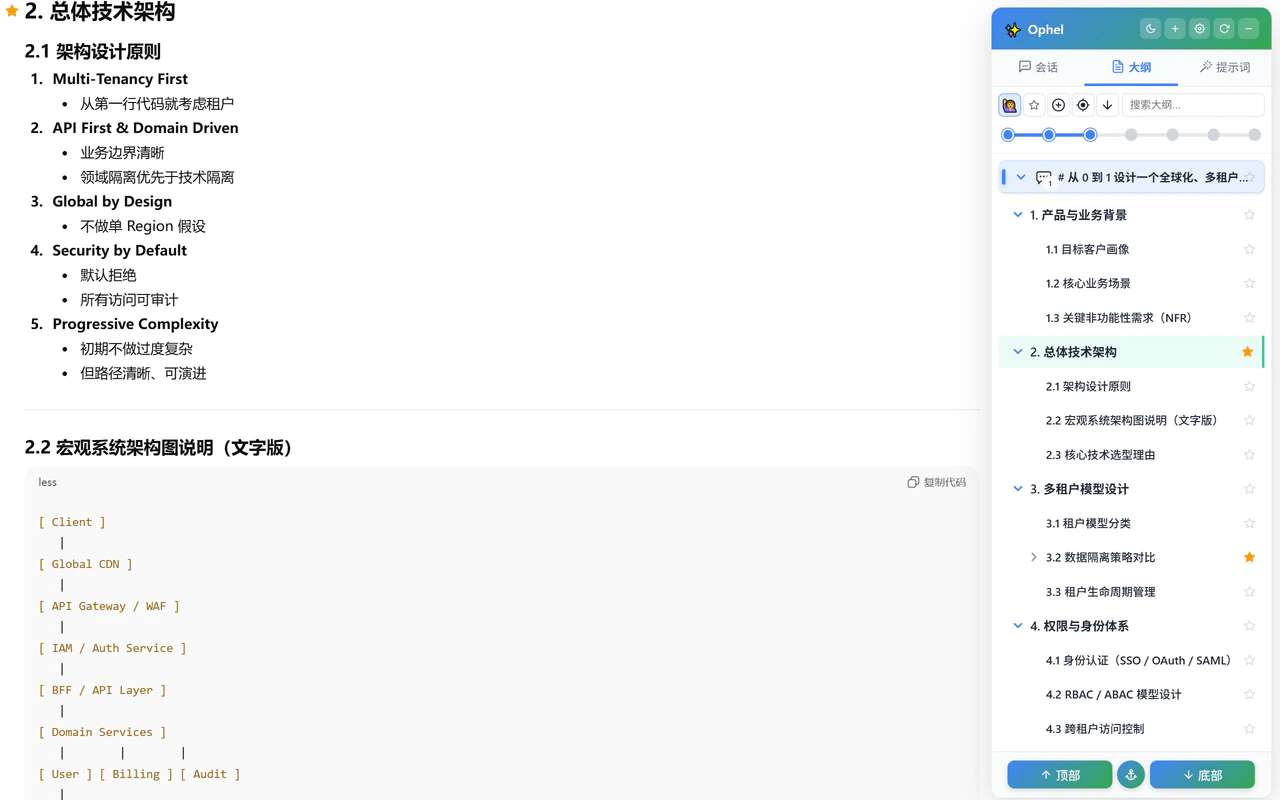
<img src="https://mintcdn.com/urzeye/9I8m8P8gSndxcYtq/images/features/outline-zh.png?fit=max&auto=format&n=9I8m8P8gSndxcYtq&q=85&s=1552815538d928dbd0de5155025c0f83" alt="智能大纲 — 实时对话目录树" width="1280" height="800" data-path="images/features/outline-zh.png" />

大纲标签页自动读取当前 AI 对话，在侧边面板中生成一棵可点击的实时目录树。对话越长，它越有价值。

## 工作原理

每次 AI 完成一次回复，Ophel 就扫描对话，从以下内容构建大纲树：

* **你的问题** — 每条用户消息成为第一级节点
* **AI 回复中的 Markdown 标题** — AI 回复里的 `#`、`##`、`###` 等标题，作为嵌套子节点挂在触发那次回复的问题下方

```text theme={}
你：解释 React 核心概念
  ├── # React 简介
  │   ├── ## 什么是 React
  │   └── ## 为什么用 React
  ├── # 核心概念
  │   ├── ## 组件
  │   ├── ## Props 与 State
  │   └── ## 生命周期
  └── # 总结
```

点击任意节点，页面立即跳转到对应位置。

## 滚动同步

在页面中滚动时，大纲会实时高亮当前可见区域对应的节点，让你随时清楚自己在长对话中的位置。可在 **设置 → 功能 → 大纲 → 滚动同步** 中调整。

## 过滤与工具栏按钮

大纲工具栏提供过滤、展开、复制、定位和列表滚动按钮：

| 按钮                                                                                                                                         | 作用                     |
| ------------------------------------------------------------------------------------------------------------------------------------------ | ---------------------- |
| <Icon src="/docs/images/icons/user-query.svg" alt="用户问题图标" /> **用户问题开关**                                                                        | 显示或隐藏你的消息节点，适合快速回顾对话脉络 |
| <Icon src="/docs/images/icons/star.svg" alt="书签图标" /> **仅书签**                                                                                   | 只显示你手动标星的节点            |
| <Icon src="/docs/images/icons/expand-all.svg" alt="展开全部图标" /> / <Icon src="/docs/images/icons/collapse-all.svg" alt="折叠全部图标" /> **展开 / 折叠全部**        | 展开或折叠当前可见的大纲树          |
| <Icon src="/docs/images/icons/copy-outline.svg" alt="复制大纲图标" /> **复制大纲**                                                                        | 复制当前来源的大纲 Markdown     |
| <Icon src="/docs/images/icons/locate.svg" alt="定位当前节点图标" /> **定位当前位置**                                                                          | 将大纲列表滚回当前阅读位置对应的节点     |
| <Icon src="/docs/images/icons/scroll-top.svg" alt="滚动到大纲顶部图标" /> / <Icon src="/docs/images/icons/scroll-bottom.svg" alt="滚动到大纲底部图标" /> **滚到顶部 / 底部** | 只在大纲列表内跳转，不移动对话页面      |

## 书签

鼠标悬停在任意大纲节点上，会出现 <Icon src="/docs/images/icons/star.svg" alt="书签图标" /> 星形图标。点击即可为该节点添加书签。书签在页面刷新后仍然保留。通过过滤按钮可以只查看书签节点，方便在多个重要片段之间快速跳转。

<Note>
  如果一个加了书签的标题后来被 AI
  删改（例如重新生成），它就成了"幽灵书签"——指向不存在的位置。点击
  <Icon src="/docs/images/icons/tools.svg" alt="工具箱图标" /> **工具箱**中的
  <Icon src="/docs/images/icons/cleanup.svg" alt="清除无效收藏图标" /> **清除无效收藏**，可以批量删除这些无效书签。
</Note>

## 按层级展开

使用快捷键 <Shortcut combo="alt+shift+1" /> 到 <Shortcut combo="alt+shift+6" />，可以一键折叠到对应标题层级（比如只展开到 H2）。<Shortcut combo="alt+e" /> 在全部展开和全部折叠之间切换。

## 字数统计与节点复制

鼠标悬停在大纲节点上，会显示该节点内容的大致字数统计，方便判断每个章节的长度。节点右侧会出现 <Icon src="/docs/images/icons/copy.svg" alt="复制图标" /> 复制图标，点击即可将该节点文本复制到剪贴板。

## 复制完整大纲

点击大纲工具栏里的 <Icon src="/docs/images/icons/copy-outline.svg" alt="复制大纲图标" /> **复制大纲**按钮，即可复制当前来源的结构化 Markdown 大纲。对话来源会遵循当前用户问题开关和标题层级；文档来源会遵循当前可见的大纲树。遇到虚拟滚动长对话时，Ophel 会先加载完整历史，复制完成后再恢复页面位置。

## 文档大纲源切换

在包含独立文档面板的平台上——例如 Claude 右侧的文档面板或 Gemini Deep Research 报告——大纲顶部会显示 <Icon src="/docs/images/icons/outline-document.svg" alt="文档大纲图标" /> **对话 / 文档**源切换器。切换到 **文档** 后，大纲树反映的是文档的标题结构而非对话内容，方便你独立浏览报告内容。

## 刷新与定位

按 <Shortcut combo="alt+r" /> 手动刷新大纲（有时平台的 DOM 更新较慢，需要手动触发）。点击 <Icon src="/docs/images/icons/locate.svg" alt="定位当前节点图标" /> **定位当前位置**按钮，或按 <Shortcut combo="alt+l" />，可以将大纲列表滚回当前页面位置对应的节点，节点会短暂高亮。

## 大纲设置

在 **设置 → 功能 → 大纲** 中调整：

| 设置项     | 说明                  |
| ------- | ------------------- |
| 滚动同步    | 滚动页面时自动高亮大纲当前节点     |
| 激活阈值    | 触发高亮的滚动偏移量（px）      |
| 默认展开层级  | 页面加载后大纲默认展开到哪一级标题   |
| 显示字数统计  | 鼠标悬停时是否显示该节点的字数     |
| 滚动到大纲顶部 | 切换到大纲标签时是否将大纲列表滚回顶部 |
| 禁用动画    | 关闭节点定位时的呼吸光晕闪烁动画    |

## 常用快捷键

<ShortcutLegend lang="zh" />

| 操作                 | 快捷键                                                                  |
| ------------------ | -------------------------------------------------------------------- |
| 刷新大纲               | <Shortcut combo="alt+r" />                                           |
| 展开/折叠全部            | <Shortcut combo="alt+e" />                                           |
| 展开到 H1–H6          | <Shortcut combo="alt+shift+1" /> \~ <Shortcut combo="alt+shift+6" /> |
| 跳到上一个标题            | <Shortcut combo="alt+up" />                                          |
| 跳到下一个标题            | <Shortcut combo="alt+down" />                                        |
| 切换显示/隐藏用户问题        | <Shortcut combo="alt+q" />                                           |
| 仅显示用户问题（层级收起至 0 级） | <Shortcut combo="alt+shift+q" />                                     |
| 切换"仅书签"过滤          | <Shortcut combo="alt+c" />                                           |
| 定位大纲               | <Shortcut combo="alt+l" />                                           |
| 搜索大纲               | <Shortcut combo="alt+f" />                                           |
