

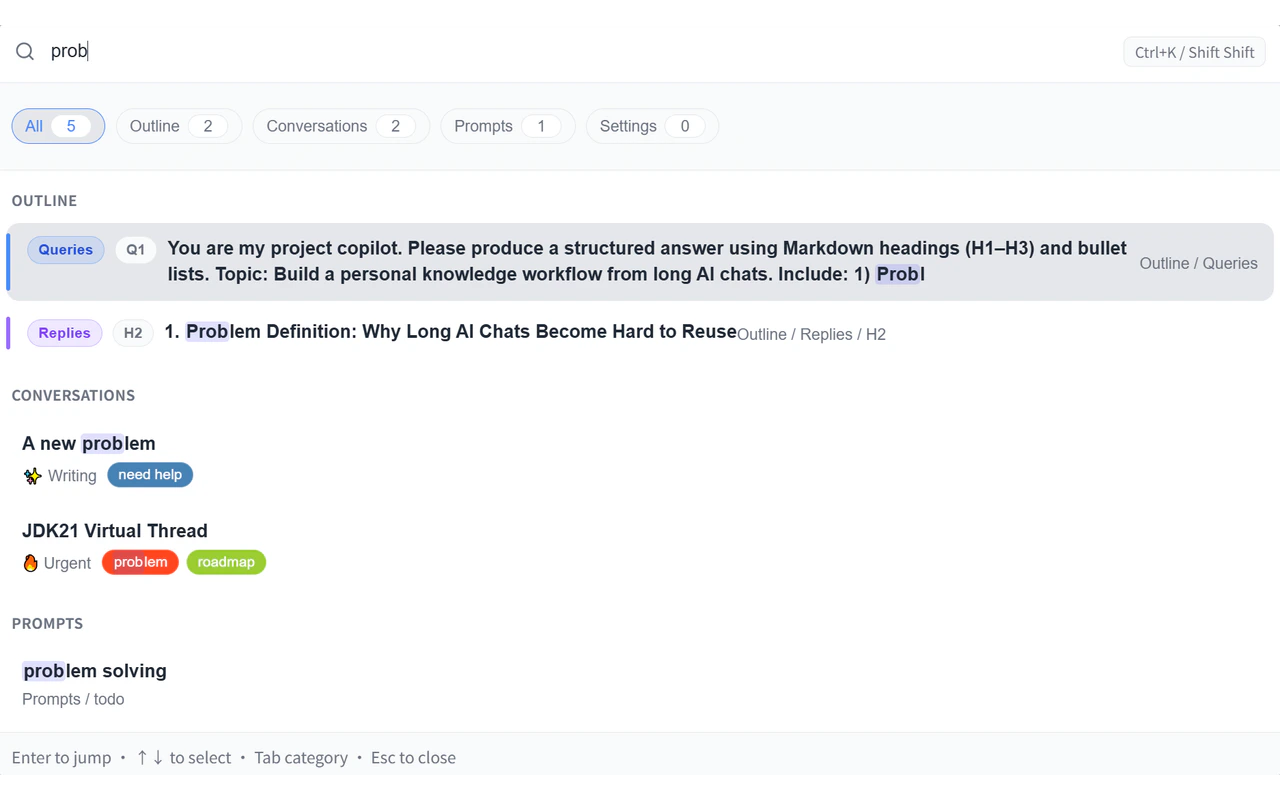
How to open Global Search
Double Shift must be enabled in settings before it works. Unlike other
shortcuts, it does not require the page to be focused, making it useful when
you are interacting with another part of the browser.
Search scope
Global Search covers five result types:
Results are grouped by type. Use the arrow keys to navigate up and down, press Enter to jump to the selected result, and press Esc to close the overlay.
Syntax filters
Add akey:value prefix to narrow results. Multiple filters can be combined with each other and with plain keywords.
Type
tip: in the search box to switch into Feature Tips mode. This is not a
syntax filter — it bypasses normal search and lists Ophel feature discovery
tips instead.Fuzzy search
When fuzzy search is enabled, Ophel allows partial matches — searchingrans finds translate. When it is off, only exact substring matches are returned.
Toggle fuzzy search in Settings → Global Search.
Selecting a prompt result
When you press Enter on a prompt result, Ophel adapts to the context:- Smart insert (default) — if an AI input box is available on the current page, the prompt is inserted directly into it
- Locate only — Ophel switches to the Prompts tab and highlights the entry, without inserting
Search tips
Find a conversation by folder
Find a conversation by folder
Type
folder: followed by part of the folder name. You do not need to type the full name — partial matches work when fuzzy search is on.Find all conversations with a specific tag
Find all conversations with a specific tag
Type
tag: followed by the tag name.Filter by pin state
Filter by pin state
Use
is:pinned to see only pinned conversations, or is:unpinned to exclude them.Filter by recency
Filter by recency
Use
date:Nd to limit results to conversations or prompts updated within the last N days. For example, date:7d returns items from the past week.Filter by heading level
Filter by heading level
Use
level:n (0–6) to find outline nodes at a specific heading depth. Level 1 is an <h1>, level 2 is <h2>, and so on. Level 0 matches your own questions in the conversation.Jump to a settings page
Jump to a settings page
Type a feature or setting name directly. For example, typing
theme surfaces the Appearance settings entry; typing shortcut brings up the Shortcuts page.Find an outline heading in the current conversation
Find an outline heading in the current conversation
Open Global Search while reading a conversation and type part of a heading. Selecting the result scrolls the conversation to that heading and highlights the matching outline entry.