

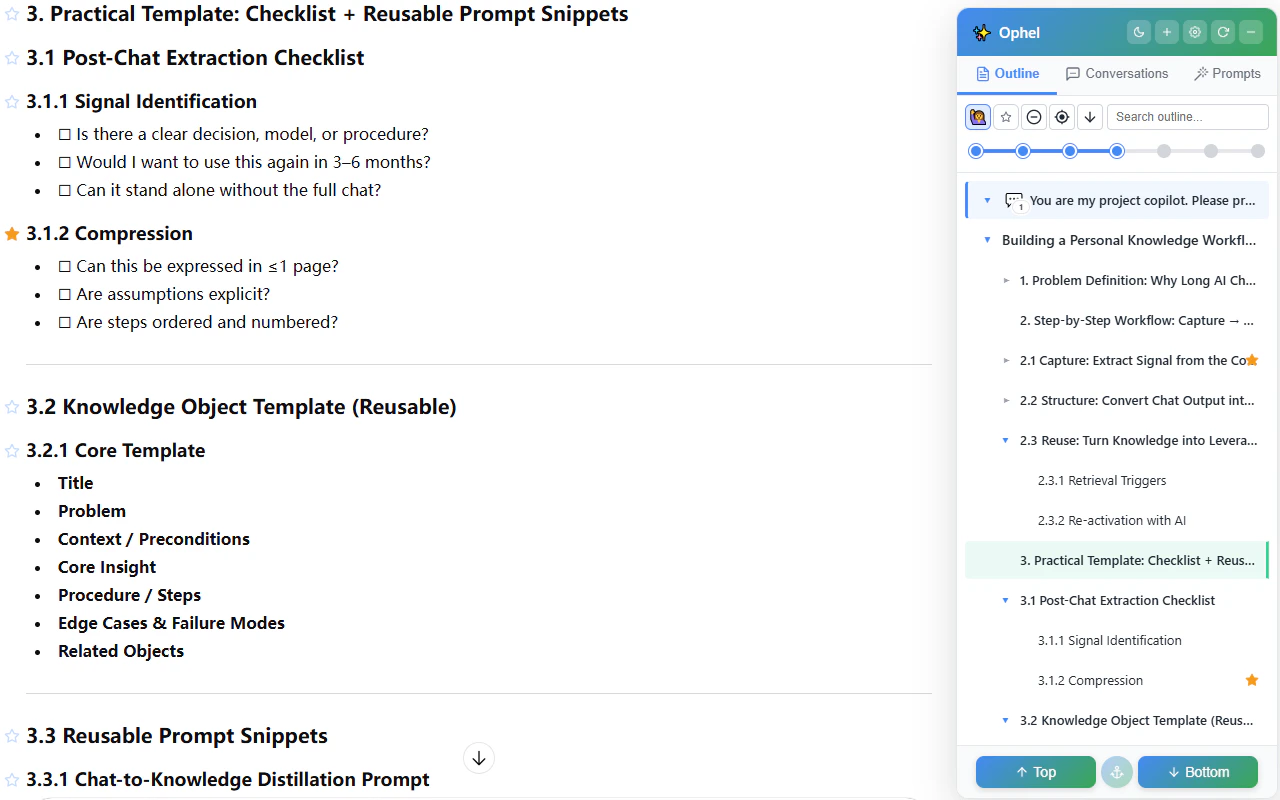
How the outline is built
Every time the AI finishes a reply, Ophel scans the page and produces a tree from two sources:- Your questions — each user message becomes a first-level entry
- AI response headings — Markdown headings (
#,##,###, etc.) inside AI replies appear as nested children under the question that triggered them
Scroll following and locate mode
As you scroll the conversation, the outline highlights the entry that matches your current reading position in real time — a position indicator that keeps you oriented inside long threads. If you scroll the outline panel itself and lose track of where you are, click the Locate current position button or press to snap the outline panel back to highlight your current position.Filter and toolbar controls
The outline toolbar gives you quick controls for filtering, expansion, copying, locating, and scrolling.
You can also switch filters with keyboard shortcuts:
Bookmarks
Hover over any outline entry to reveal the star icon. Click it to bookmark that heading. Bookmarks persist across page reloads.If a bookmarked heading disappears from the conversation — for example, when
the AI regenerates a response — it becomes a ghost bookmark. Open the
Toolbox and
select
Clear Invalid Bookmarks to remove stale ghost bookmarks.
Expand by level
You can expand the tree to a specific heading depth without manually clicking every node.1
Right-click any outline node
A context menu appears with expand-to-level options.
2
Choose a depth, or use a keyboard shortcut
Press through to expand to heading levels 1–6 directly.
Word count on hover
Hover over any outline entry to see a small tooltip showing the approximate character count of that section. This gives you a quick sense of how long an AI response or section is before you navigate to it.Copy node text
Outline entries show a copy icon on hover. Click it to copy that node’s text to your clipboard — handy for re-asking a question in a new conversation or saving a heading to notes.Copy full outline
Click the Copy outline button in the Outline toolbar to copy a structured Markdown outline for the current source. For conversations, the copy follows the current user-question toggle and heading level. For document outlines, it follows the visible outline tree. For virtualized long conversations, Ophel loads the full history first, then restores the page position when it finishes.Document outline sources
On platforms that expose a separate document panel — such as Claude’s right-side document panel or Gemini’s Deep Research report — the outline header shows a Chat / Document source switch. When you select Document, the outline tree reflects the document’s heading structure instead of the conversation’s, letting you navigate the report independently from the chat thread.Shortcuts
All shortcuts are customizable in Settings → Keyboard Shortcuts.