

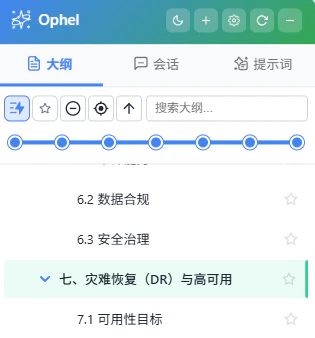
Panel not appearing
1
Confirm the extension is enabled
Click the puzzle-piece icon in your browser toolbar and verify that Ophel
Atlas is toggled on. If it’s disabled, enable it and reload the page.
2
Hard-reload the page
Press to force a full page reload. A
standard reload sometimes does not reinitialize the Ophel panel on the page.
3
Check the supported site list
Ophel only activates on its supported platforms. Confirm you’re on one of
the 15 supported sites (Gemini, ChatGPT, Claude, DeepSeek, Grok, and
others). If the URL doesn’t match, Ophel will not inject the panel.
4
Use the keyboard shortcut as a fallback
If the panel was previously closed, press to
reopen it. This toggles the panel regardless of the state of any floating
buttons.
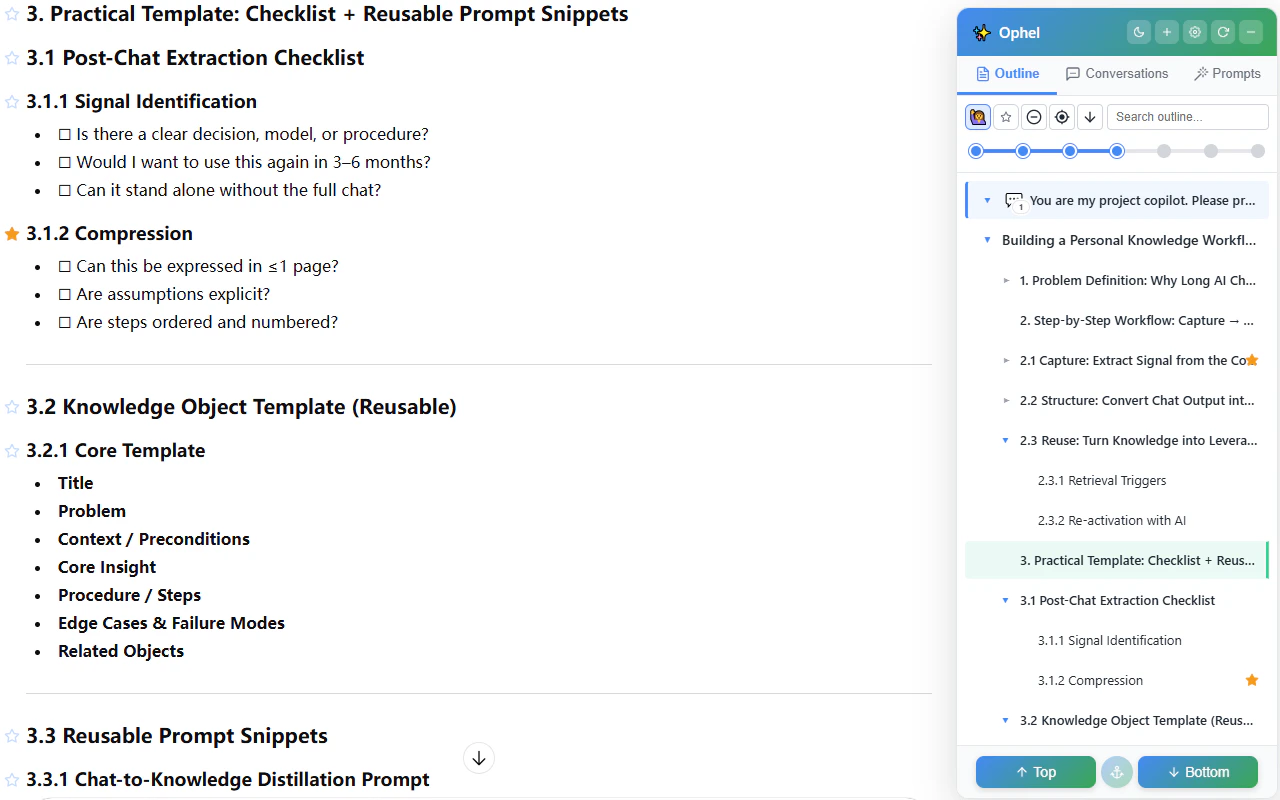
Outline is empty or not updating
1
Refresh the outline manually
Press to force the outline to re-scan the
conversation. Some AI platforms update the DOM asynchronously, so the
outline may not populate on its own immediately after the page loads.
2
Wait for the AI to finish responding
The outline rebuilds after each AI reply completes. If the AI is still
generating, the outline won’t update until it finishes.
3
Check the auto-update setting
Go to Settings → Features → Outline and confirm that Auto-update outline during conversation is
enabled. If it’s off, the outline only refreshes when you trigger it
manually with .
Outline not tracking scroll position
If the outline doesn’t highlight the section you’re currently reading as you scroll:1
Check the follow mode setting
Go to Settings → Features → Outline and set Outline Follow Mode to
Follow Current Position. When set to Manual Control, the outline does not automatically
track your scroll position.
Floating buttons disappeared

1
Move your mouse near the buttons
Move your cursor within approximately 150 px of the collapsed pill. The
buttons will expand automatically.
2
Use the keyboard shortcut if the pill is not visible
If the buttons are completely missing from the screen, press to open the panel. The floating buttons reappear alongside it.

Panel covering page content
1
Use ghost mode for temporary click-through
Hold alone for about 0.2
seconds. The panel becomes transparent and lets clicks pass through to the
page behind it. Release the key to restore the panel to normal.
2
Drag the panel to a screen edge
Drag the panel toward any screen edge. When it snaps into place, it hides
against the edge and only slides out when you hover over it — freeing up the
rest of the screen. To undock it, drag it away from the edge.
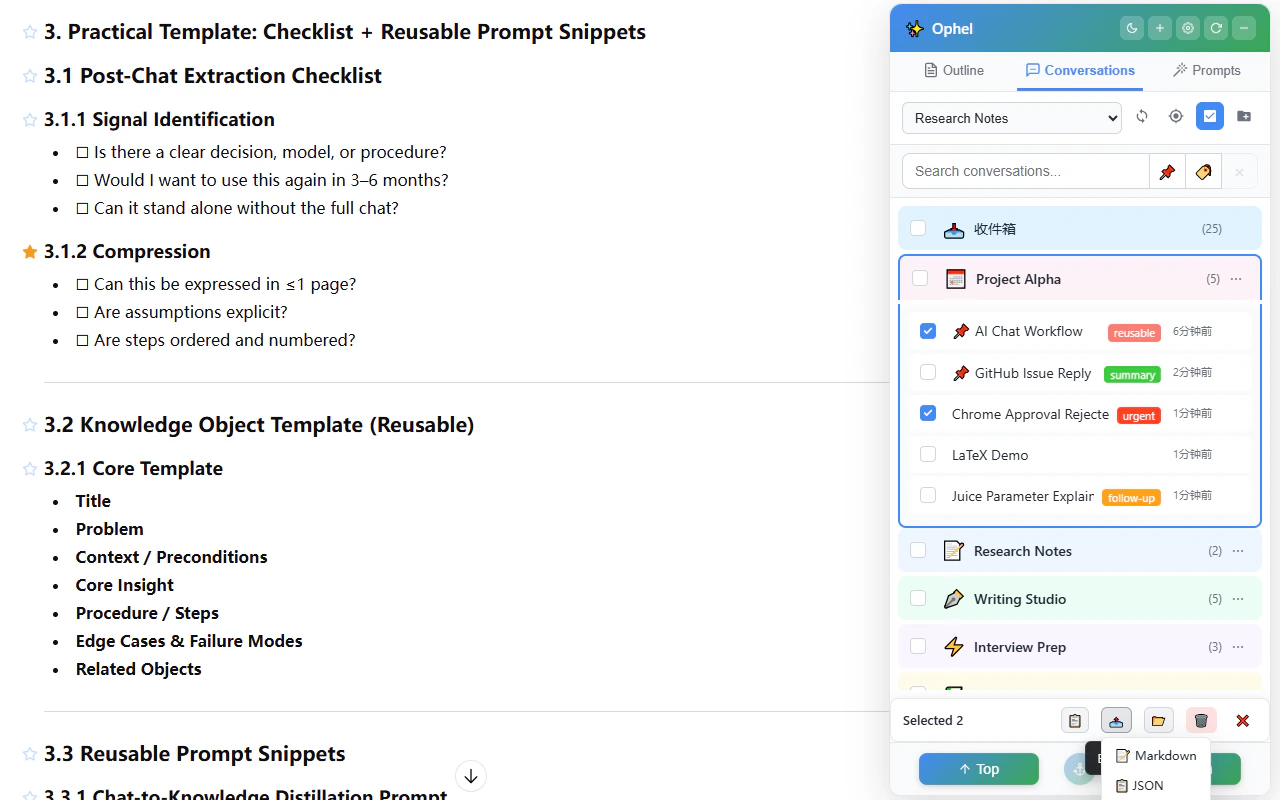
Conversations tab is empty
1
Make sure the AI platform's sidebar has loaded
The Conversations tab reads directly from the AI platform’s own sidebar. If
that sidebar hasn’t loaded yet, Ophel has nothing to display.
2
Scroll the native sidebar
Open the AI platform’s built-in conversation list and scroll down to trigger
it to load more items. After it loads, Ophel’s Conversations tab will
reflect the updated list.
Prompt queue stalled
The Prompt Queue advances to the next prompt by detecting when the AI page becomes idle — specifically, when no active generation spinner is visible for two consecutive polling intervals (roughly 2 seconds).1
Check whether the AI has actually finished
Some platforms briefly show a loading indicator even after generation is
complete. Wait a few seconds to see if the queue advances on its own.
2
Force-send a pending item
If the AI platform uses an unusual loading indicator that Ophel cannot
detect, the queue may stall. Open the queue overlay with , then use Force Send on the pending item you want to send now.
Firefox: extension removed after browser restart
Firefox treats extensions loaded via Load Temporary Add-on (throughabout:debugging) as temporary add-ons. They are automatically removed every time you restart Firefox.
1
Install from Firefox Add-ons for a permanent install
Install Ophel Atlas from the Firefox Add-ons
store.
Store-installed extensions persist across restarts.
2
Use the userscript as an alternative
If you need to use a local build or cannot use the Add-ons store, install
the userscript version via Tampermonkey. Userscripts managed by Tampermonkey
are not affected by Firefox’s temporary add-on limitation.
Something else is broken
If none of the above applies, follow these steps to diagnose the issue before reporting it:1
Test in an incognito window
Open an incognito (private) window with only Ophel enabled and no other
extensions. If the problem disappears, another extension is likely
interfering.
2
Check the browser DevTools console
Right-click anywhere on the page, choose Inspect, and open the
Console tab. Look for red error messages that mention Ophel or the AI
platform. Copy any errors you find — they’re essential for a bug report.
3
Note your versions
Before reporting, note your browser name and version, your Ophel Atlas
version (shown in the extension popup), and the affected AI platform URL.
4
Report on GitHub Issues
Open a new issue at
github.com/urzeye/ophel/issues
with the information from the steps above. Include the console output and a
description of how to reproduce the problem.
Report an issue on GitHub
Open a bug report or feature request on the Ophel Atlas GitHub Issues page.
Include your browser version, extension version, and any console errors to
help the team reproduce the problem.