

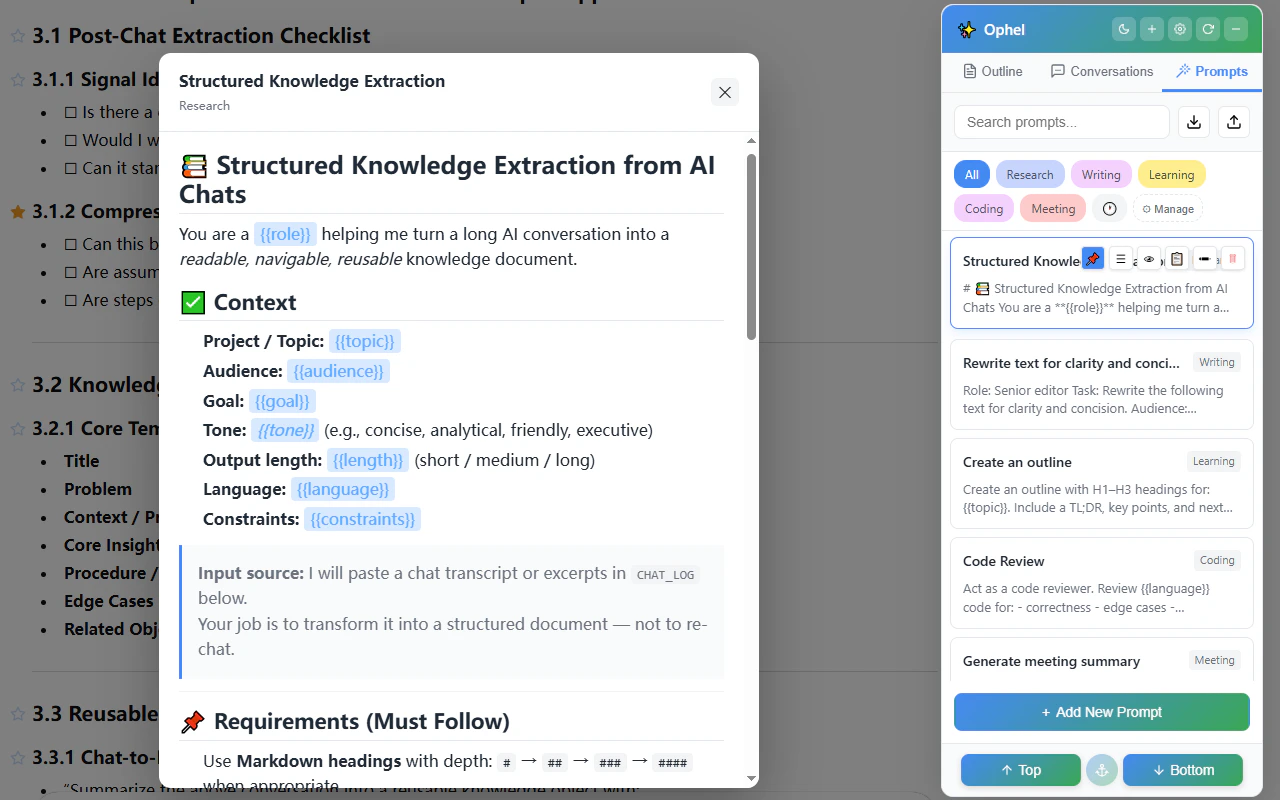
Using a prompt
- Single click
- Double-click
Inserts the prompt text into the AI input box but does not submit. You can
review or edit the content before sending.
Creating prompts
Click the + Add Prompt button at the bottom of the Prompts tab and fill in the following fields:
The prompt appears in the list immediately after saving. Hover over a prompt row to use pin, preview, copy, more, edit, or delete.
Variables
Variables let you write a reusable template where certain values are filled in when you use the prompt. The syntax is double curly braces:{{variable_name}}.
When you click a prompt containing variables, a dialog pops up with an input for each one. Fill in the values and press Enter or click Confirm to insert the filled text.
There are three variable sub-types:
Basic variable
Basic variable
A plain variable name inside double curly braces. The dialog shows an empty text input.
Variable with a default value
Variable with a default value
Add a colon (
:) after the variable name, followed by the default. The dialog pre-fills the input with that value — press Enter to accept it unchanged.Variable with dropdown options
Variable with dropdown options
Add a colon after the variable name, then list options separated by pipe characters (You can list as many options as you need:
|). The dialog shows a dropdown menu instead of a text field.{{ and }} if there is no colon.
Categories
Assign prompts to categories to keep your library organized. A category sidebar appears on the Prompts tab — click a category name to filter the list to that group. Categories are created automatically when you type a new name while editing a prompt.Pins
Click the pin icon on any prompt to float it to the top of the list. Pinned prompts always appear before unpinned ones, regardless of the active category filter.Sorting and search
Use the search box at the top of the Prompts tab to filter by title or content in real time. Pinned prompts always stay at the top of sorted results. Drag any prompt row to reorder your library. Buttons, inputs, menus, and other interactive controls inside a row remain clickable and do not start a drag.Import and export
Click the import/export button in the Prompts tab toolbar, then choose Export to save your entire prompt library to a JSON file. This is useful for backup or transferring to another device. Choose Import from the same menu to read a JSON file back and pick one of three merge options:Prompt Queue
The Prompt Queue lets you line up multiple prompts and send them automatically one after another. Ophel waits for the AI to finish each response before sending the next — you do not have to watch and click each time. This is useful for multi-step workflows, batch tasks, or structured interview sequences.Enabling the Queue
Go to Settings → Features → Prompts → Prompt Queue and toggle it on. A queue widget appears near the AI input box. Show or hide it at any time with the Toggle Prompt Queue shortcut (default: ).Adding prompts to the Queue
Type directly in the queue input field and press Enter to add a prompt. The queue displays a numbered list of pending items. You can also add saved prompts from the Prompt Library:
Variable prompts open the variable dialog first when you add them from the prompt row menu. After you confirm the variables, the resolved prompt is added to the queue.
For adding many prompts at once, click the Batch Add button in the queue panel. The dialog has two sources:
- Prompt Library
- Text
Select saved prompts directly from your library. Choose Each prompt as one
item or Split by line. Prompts that still require variables are
disabled in this batch picker; open them from the Prompts tab first so you
can fill the variables.
A preview shows exactly how the text will be divided before you confirm.
Running the Queue
1
Add one or more prompts
Add prompts from the queue input, the prompt row menu, or the Batch Add dialog.
2
Ophel sends prompts automatically
If the AI is idle, Ophel starts with the next queued prompt immediately. If
the AI is generating, pending prompts wait in the queue until the page is
idle.
3
Manage the queue while it runs
You can edit a pending item, force-send a single item, remove individual
items, or clear the queue with Clear Queue.
Prompt Chains
Prompt chains let you select text from any part of the conversation and trigger a sequence of prompts that reference that selection. When you select text on the page, a lightweight popover appears with built-in actions and any custom chains you’ve created.What are chains?
A chain is a sequence of prompts that run one after another. Each step in the chain can reference the selected text using special variables:{{selection}}— The raw selected text{{quote}}— The selected text formatted as a Markdown blockquote
- Select a passage, summarize it, then ask a follow-up question
- Select code, explain it, then suggest improvements
- Select text, translate it, then rewrite in a different tone
Creating a chain
1
Open the Chains view
In the Prompts tab, click Chains at the top to switch from the Prompts list to the Chains view.
2
Click Add Chain
Click the + Add Chain button and fill in:
- Name — A short label for this chain
- Description — What the chain does (optional)
- Icon — Pick from 40+ preset SVG icons, or leave blank
- Show in selection popover — Toggle whether this chain appears when you select text
3
Add prompt steps
Click Add step to add prompts to the chain. Each step can either:
- Reference an existing prompt from your library (recommended)
- Use inline text directly (for one-off chains)
4
Preview variables
The editor shows which variables your chain uses. Built-in variables like
{{selection}} and {{quote}} are filled automatically. Any other variables prompt you for input when you run the chain.5
Save
Click Save to add the chain to your library.
Using a chain
- From selection popover
- From the Chains list
Select text anywhere in the conversation. A popover appears with Copy, Quote, and your enabled chain icons. Click a chain icon to trigger it. If the chain has variables, a dialog prompts you to fill them in first.
- All variables are resolved (either automatically from the selection, or by prompting you)
- Each step is added to the Prompt Queue in order
- The queue sends each prompt one at a time, waiting for the AI to finish before sending the next
Chains require the Prompt Queue feature to be enabled. If you try to run a multi-step chain without it, Ophel will prompt you to turn it on.
Chain management
Chains appear as cards in the Chains view. Each card shows:- The chain icon and name
- Number of steps
- Whether it’s shown in the selection popover
- Enable/disable toggle
Chains are included in prompt backups and WebDAV sync.
Built-in actions
Two actions are always available in the selection popover:- Copy — Copies the selected text to your clipboard
- Quote — Inserts the selected text as a blockquote into the input box, letting you add context before sending
Settings
Go to Settings → Features → Prompts to configure:Example templates
Here are some ready-to-use prompt templates that demonstrate variable syntax. Copy any of them directly into a new prompt.Translation with language selector
Translation with language selector
Code review with language choice
Code review with language choice
Meeting summary
Meeting summary