

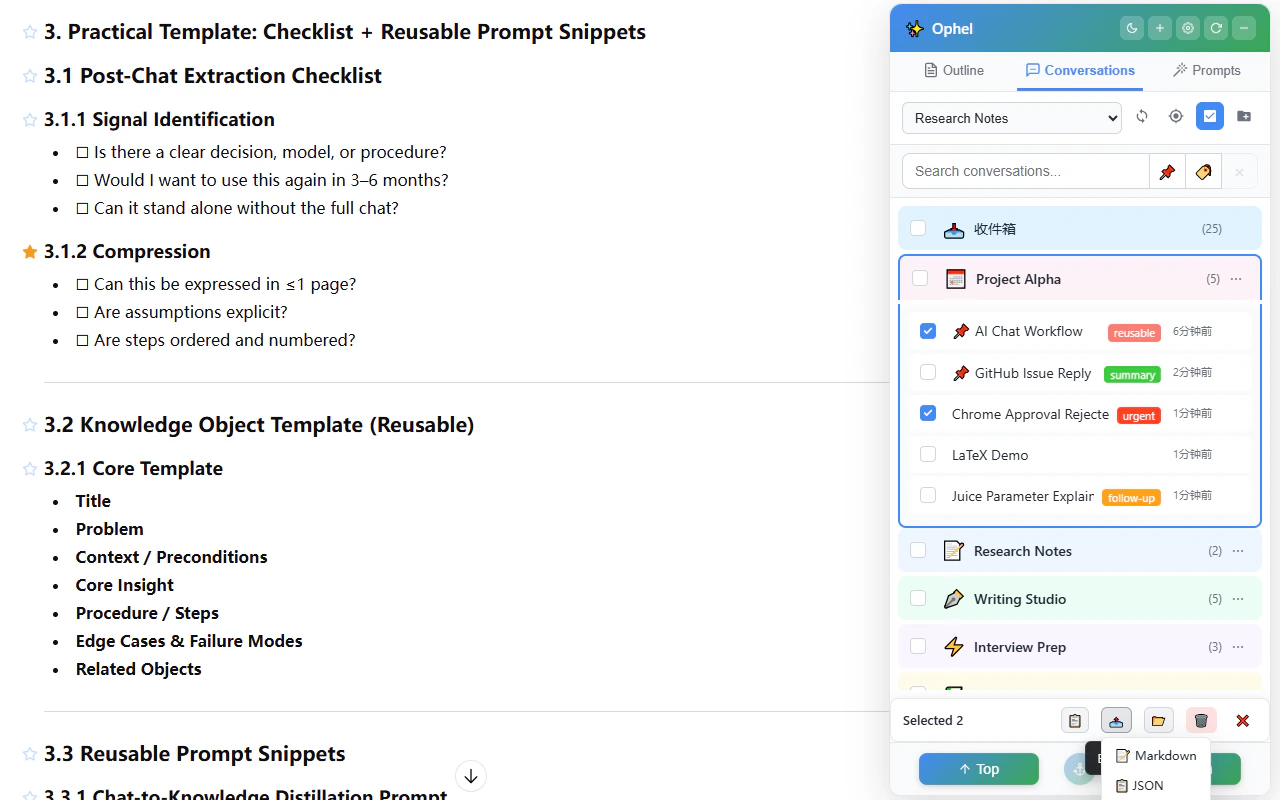
How conversations sync
Ophel observes the AI platform’s sidebar and reflects its conversation list in real time. When you create, rename, or delete a conversation on the platform, the Conversations tab updates automatically. The metadata Ophel adds — folder assignments, tags, pins — is stored locally and overlaid on top of the platform’s data. The folder selector in the upper-left toolbar controls the default folder for new sync results. After you select a folder there, newly discovered conversations are added to that folder by default, whether they are found during manual sync or detected later from the platform sidebar. Existing conversations keep their current folder unless you move them.Browsing and filtering
The Conversations tab supports several ways to narrow the list:- Search — type in the search box to filter by title in real time
- Filter by folder — click a folder in the sidebar to show only conversations in that folder
- Filter by tag — click a tag to show only conversations with that tag
- Pinned conversations — pinned items always appear at the top, regardless of any active filter
Folders
Folders group related conversations with a color-coded label. There are 8 color options. Enable rainbow colors in settings to give each folder’s conversations a distinct tinted background throughout the list. A conversation belongs to one folder at a time. Moving it to another folder updates the local Ophel metadata; it does not modify the original conversation content on the AI platform. You can move conversations in three ways:- Quick button group — click the toolbox icon in the floating quick button group, then click the Move Conversation icon in the popover.
- Conversation row menu — in the Conversations tab, click the three-dot menu on the conversation row, then choose Move Conversation.
- Batch mode — click the Batch Mode button in the Conversations tab toolbar, select one or more conversations, then click the Move button in the batch action bar.
Drag conversations to folders
Drag any conversation row onto a folder row to move it there. The target folder highlights while you hover over it, and the list updates as soon as you drop.Reorder folders
Drag any non-default folder row to reorder your folder list. The default inbox folder stays fixed, and buttons or inputs inside a folder row remain interactive instead of starting a drag.Tags
Tags are free-form labels — one conversation can have multiple tags. Use them to mark status (reviewed, todo), topic (work, study), or any other dimension that folders do not cover.
- Add or change tags from Toolbox → Set Tags, or from the conversation list context menu
- Filter by tag by clicking the tag in the sidebar
Pinning conversations
Right-click any conversation, or click the three-dot menu on its row, then choose Pin to move it to the top of the list. Pinned rows show a filled pin in the same menu; choose Unpin to return the row to normal sorting. Pins persist across sessions.Batch operations
Click the Batch Mode button in the Conversations tab toolbar, then select conversations with the row checkboxes. The batch action bar supports:Exporting a conversation
You can export a conversation in three ways:- Quick button group — click the toolbox icon in the floating quick button group, then click Export to export Markdown.
- Keyboard shortcut — press to export the current conversation as Markdown.
- Conversation row menu — in the Conversations tab, click the three-dot menu on a conversation row, choose Export, then select Markdown, JSON, or TXT.
Keyboard shortcuts
All shortcuts are customizable in Settings → Keyboard Shortcuts.
WebDAV sync
Configure a WebDAV server in Settings → Data Management → WebDAV Sync to sync Ophel’s conversation metadata to your own private server.WebDAV sync transfers only the metadata Ophel stores locally — folder
assignments, tags, and pin state. It does not include the actual AI
conversation content, which belongs to the AI platform.